You've discovered the fascinating art of Moku Hanga, the Japanese method of wood-block printing. Breathtaking landscapes, beautiful women, and busy cityscapes can be transformed into this exotic art known for flowing hand-chiseled outlines and brushed on color.
Moku Hanga - Info Page iPhone & iPad
Buttons
Top Bar Buttons

- Original Image - Hold down to view the original image for a quick comparison
- Resize - Click to zoom in on the image or to fill the window with the image
- Undo - Undo the last edit
- Randomize - Randomizes the effect on the image.
Bottom Bar Buttons
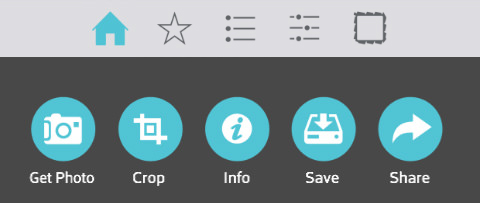
- Get Photo - Load a photo from your device
- Crop - Cut out an area of your image hiding the rest
- Info - Brings you to this page
- Save - Save your image
- Share - Save or email your image or send your image to another app. You can also save a preset, follow us on Facebook and signup for our newsletter
Adjustments
Moku Hanga includes three/four tabs which you can use to customize your image.
Brush Tab
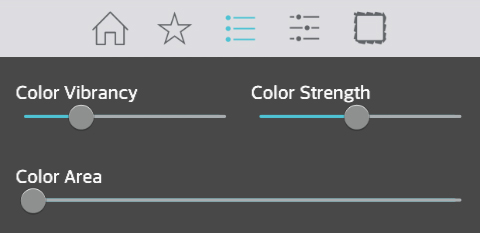
- Color Vibrancy - Enriches color in the image making them more vibrant.
- Color Strength - Change the opacity of the colors in the image.
- Color Area - Blends colors by increasing the colored areas. ( Only available when a Multi-Color is selected.)
Outline Tab
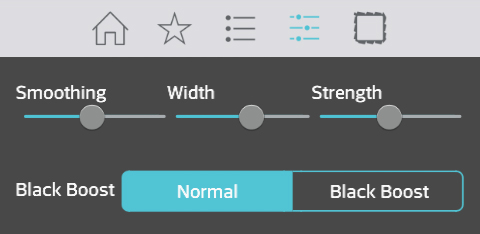
- Outline Smoothing - Makes the outline more fluid and loose. Move the slider left to make the outline more ragged and rough.
- Outline Width - Changes the thickness of the outline.
- Outline Strength - Change the opacity of the outline around the image
- Normal/ Black Boost - Switching this to Black Boost will add black to the darker parts of the image.
Paper Tab
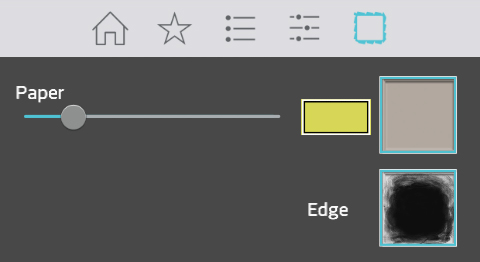
- Paper Tint - Tint paper by choosing a color. Use the slider to increase tint strength. Choose the color with the color box.
- Paper Thumbnails - Choose the background of the image.
- Edge Thumbnails - Choose a border to go around your image.
Colors Tab (Only available when using Multi-Block Style.)
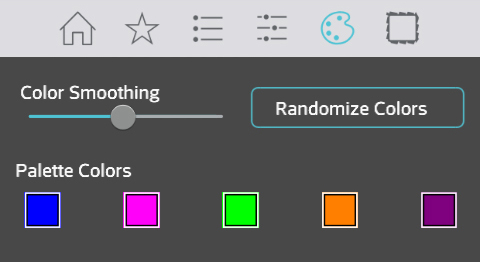
- Color Smoothing - Blends the five palette colors by increasing colored areas for each one.
- Randomize Colors - Randomly picks five colors from the original image and uses them in the palette below.
- Palette Colors - Pick five colors to appear in your image. The image will use a color in the pallete that is closest to the original color in the image.
Saving
Click on the Share Button to open a variety of different ways to save and share your image.
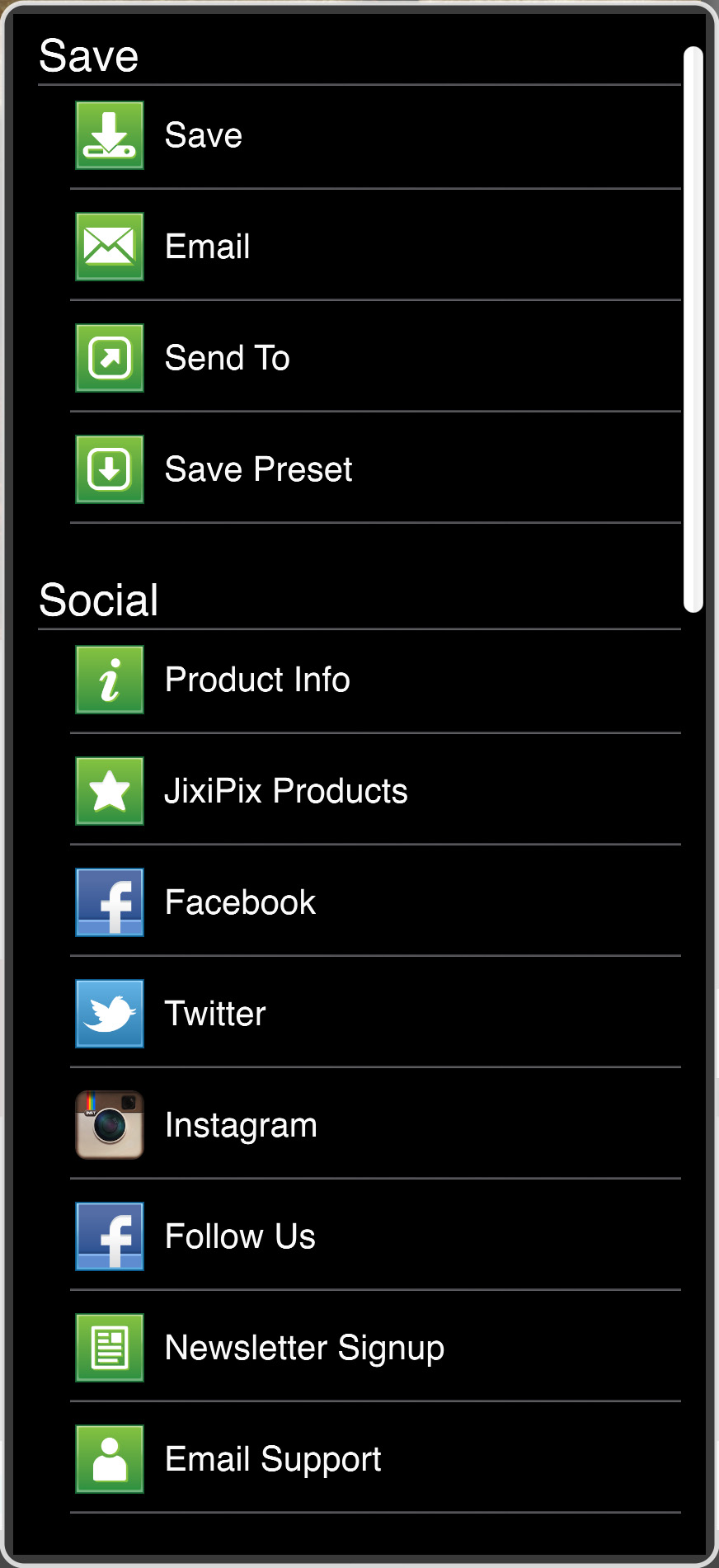
- Save - Saves the image to your camera roll.
- Email - Opens up your email so you can share your photo with friends and family.
- Send To - Send your image to another app such as a social network, email or image editing app
- Save Preset - Save your adjustments as a preset to use later.
- Product Info - Brings you to this page.
- Jixipix Products - Takes you to the Itunes App Store where you can view all our Apps.
- Facebook - Opens Facebook's login screen, once logged in you can share your image on facebook.
- Twitter - Opens Twitter's login screen, once logged in you can share your image on Twitter.
- Instagram - Opens Instagram where you can upload your image. (Requires Instagram and being logged into your Instagram account.)
- Follow Us on Facebook - Opens up our Facebook page where you can like us to get info on our latest apps and updates.
- Newsletter Signup - Enter your email to be the first to here about our upcoming apps and updates.
- Email Support - Send us a support email using one of your email apps
Presets
Saving Presets
Once you have applied a preset and modified it using the adjust tabs, you can save your own custom preset by using the "Share" button on the main screen and choosing "Save Preset" off the menu.
Favoriting and Deleting Presets
Favorite a preset to move it to the front of the presets list for quick access. To favorite or delete a preset press down on a preset thumbnail and hold until an X and heart appears, tap the heart to favorite it or tap the X to delete it.