PRODUCT INFO PAGES
Aquarella
Mac Info | iPhone Info | iPad Info
Artista Haiku
Mac Info | iPhone Info | iPad Info
Artista Oil
Mac Info | iPhone Info | iPad Info
Artista Sketch
Mac Info | iPhone Info | iPad Info
Dramatic Black & White
Mac Info | iPhone Info | iPad Info
Grungetastic
Mac Info | iPhone Info | iPad Info
Hand Tint
Kyoobik Photo
Mac Info | iPhone Info | iPad Info
Moku Hanga - Wood Cut
Mac Info iPhone Info | iPad Info
NIR Color
Mac Info | iPhone Info | iPad Info
Pop Dot Comics
Mac Info | iPhone Info | iPad Info
Portrait Painter
Mac Info | iPhone Info | iPad Info
Rainy Daze
Mac Info | iPhone Info | iPad Info
Romantic Photo
Mac Info | iPhone Info | iPad Info
Simply HDR
Desktop Info | iPhone Info | iPad Info
Snow Daze
Mac Info | iPhone Info | iPad Info
Vintage Scene
Mac Info | iPhone Info | iPad Info
Vintage Scene Video
Grungetastic - Mac Info
|
|
Top Bar Buttons Get Photo: Loads a photo from your desktop or hard drive. Original Button: Hold down to view the original image for a quick comparison Random Button: Randomizes the Rain effect on the image File MenuGet Photo: Loads a photo from your desktop or hard drive. Save Photo: Saves the image to your desktop or hard drive. Save Preset: Once you've created a grunge scene you can use this option to save all the attributes and reuse them on another picture. |

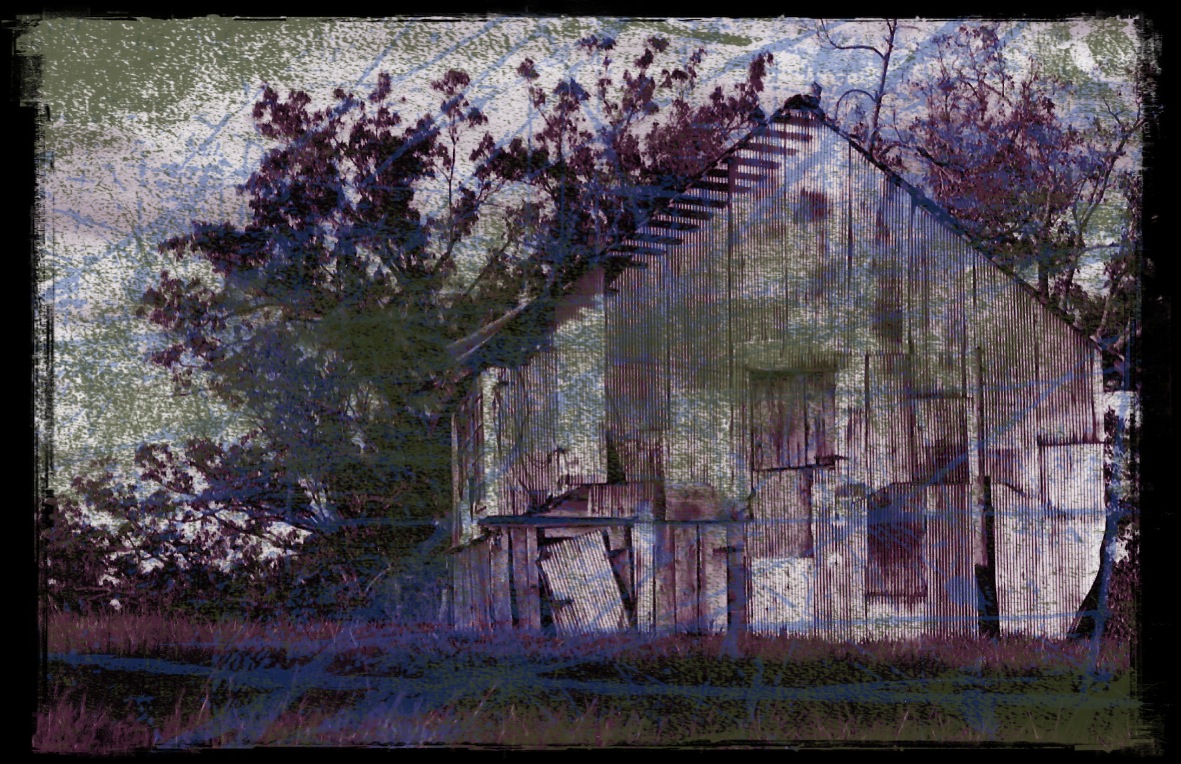
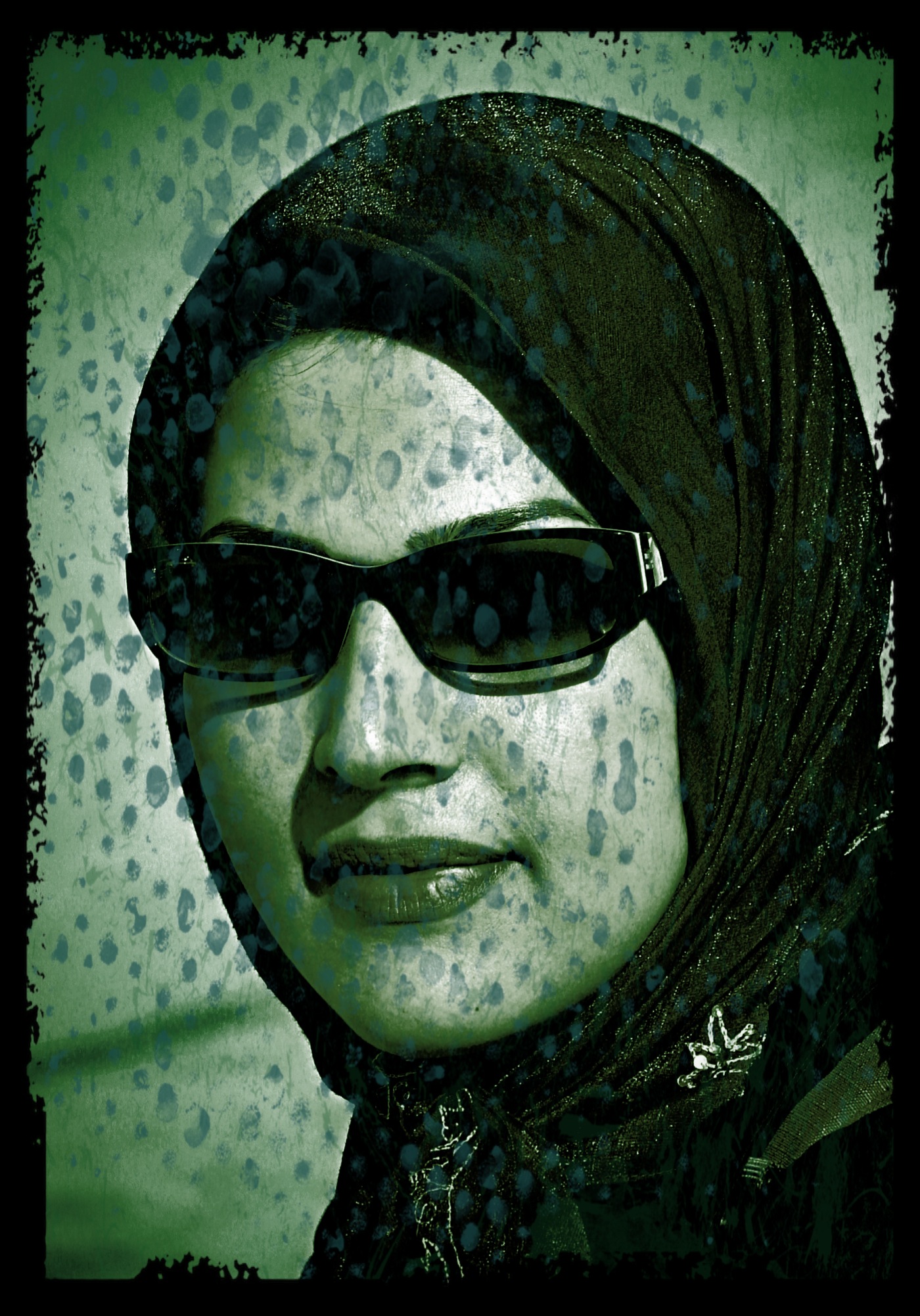
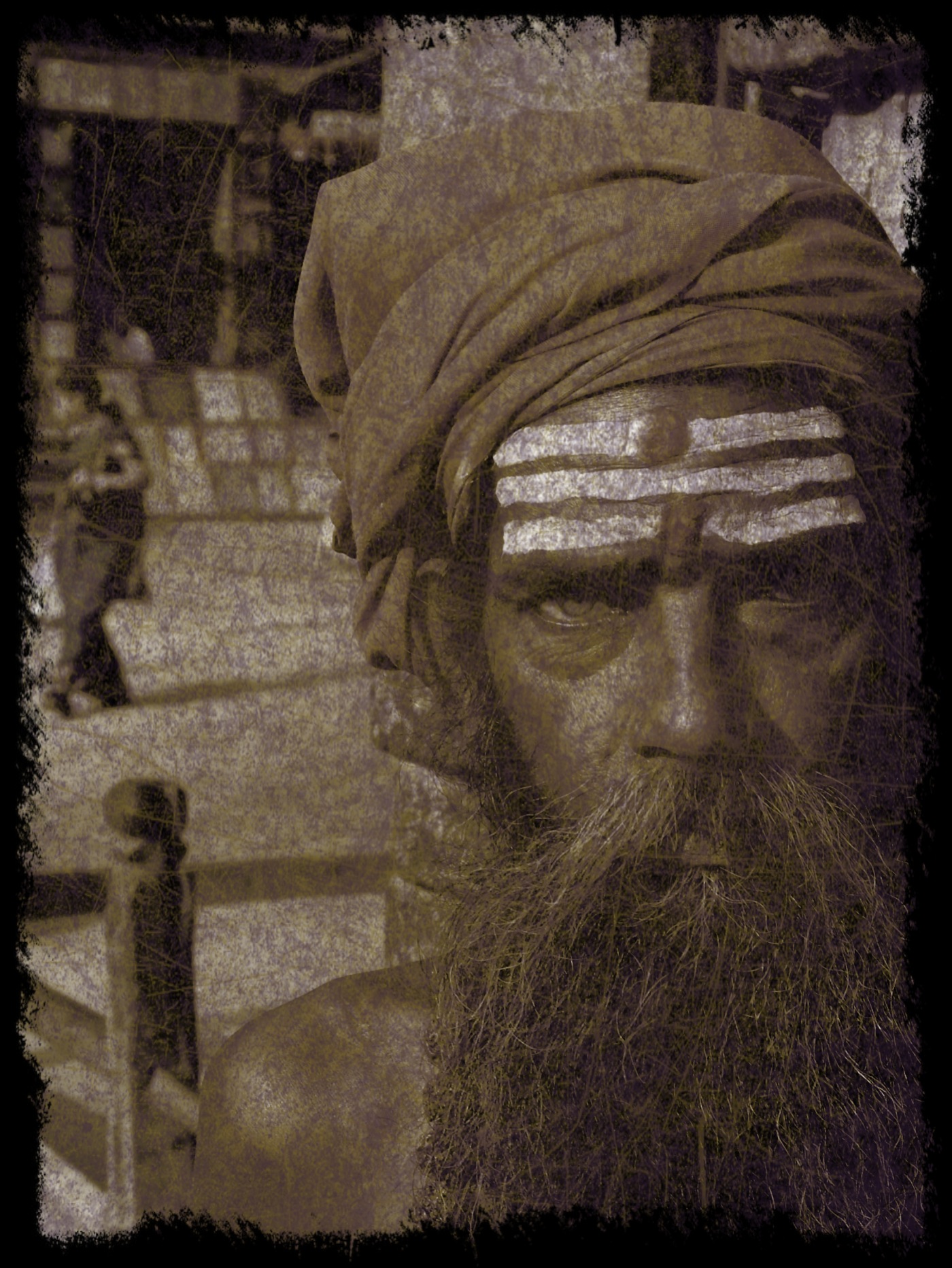
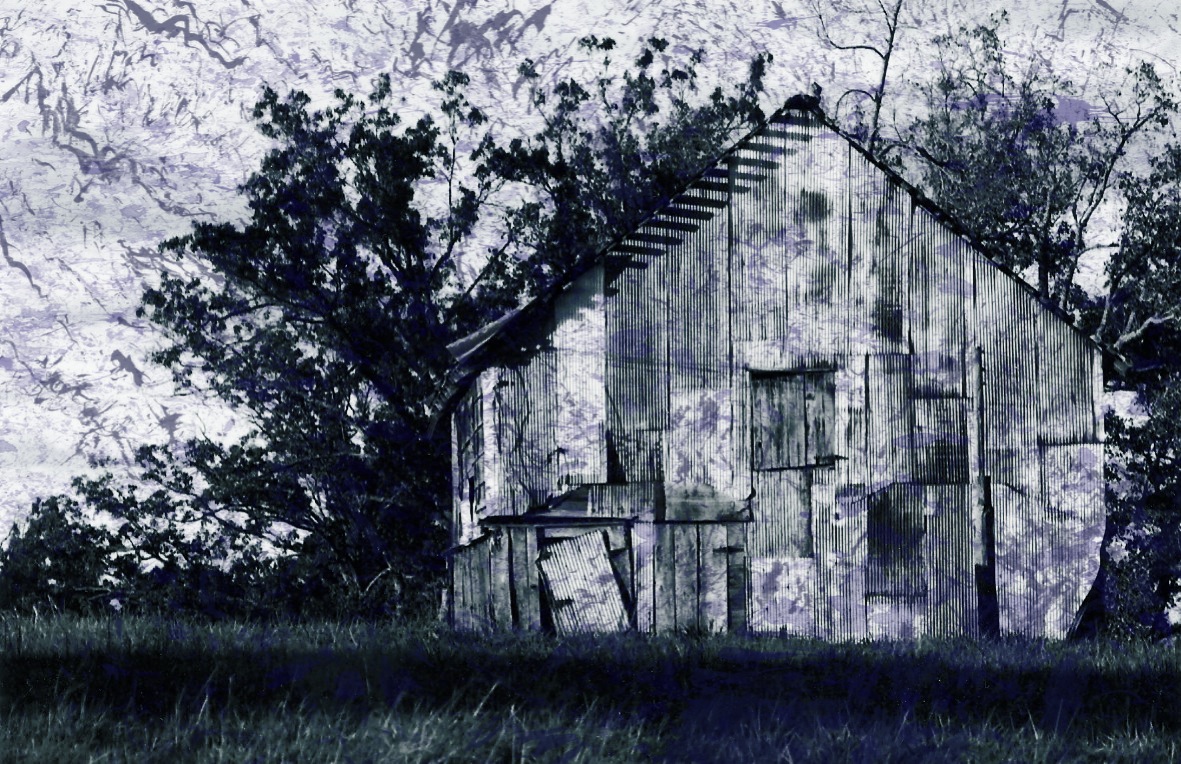
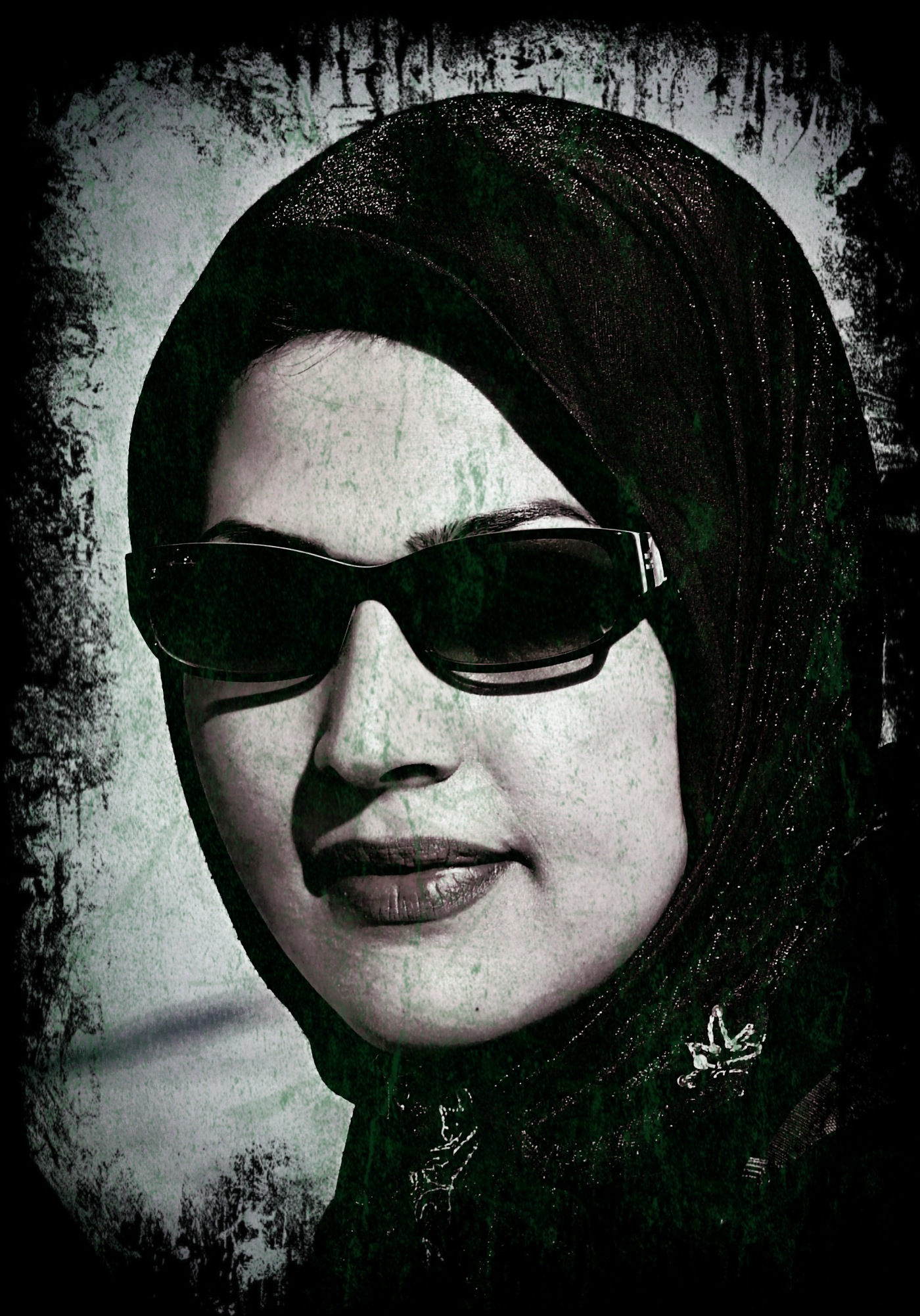
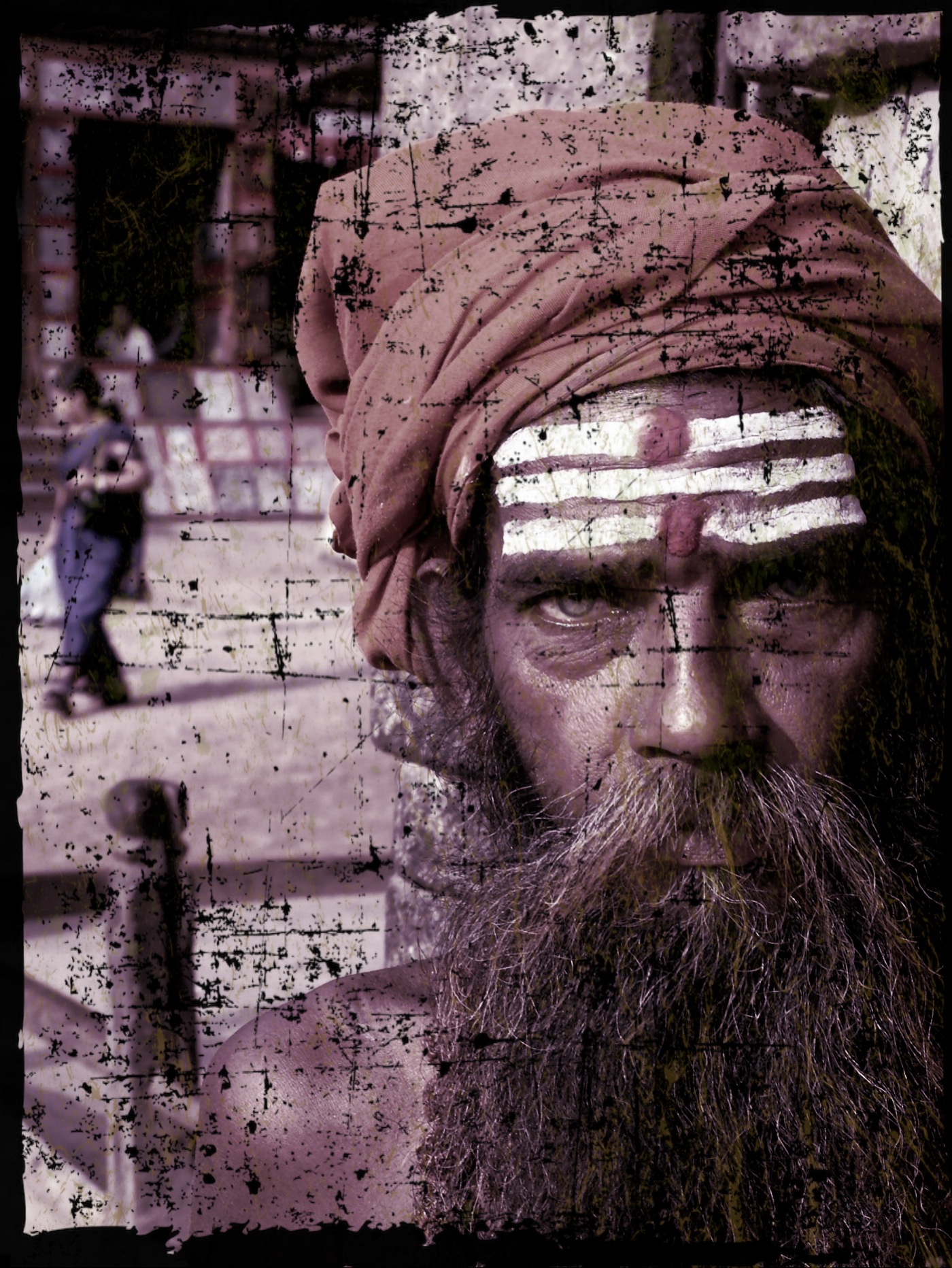
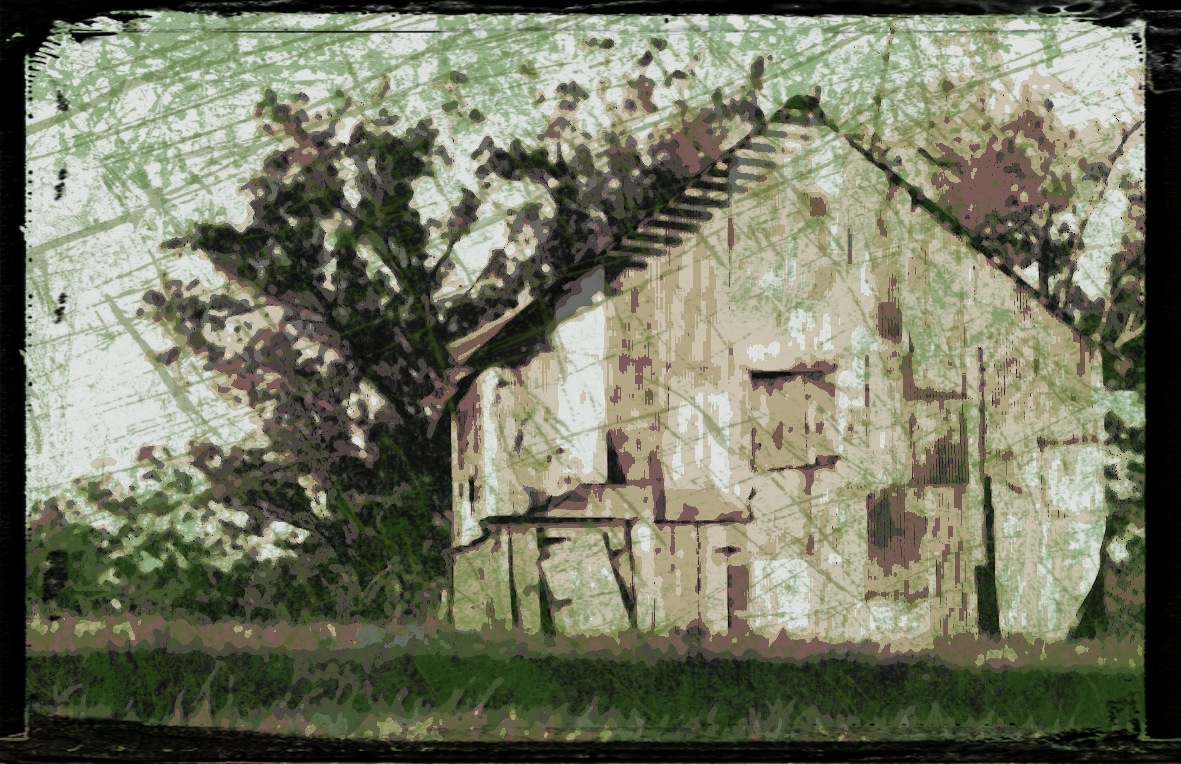
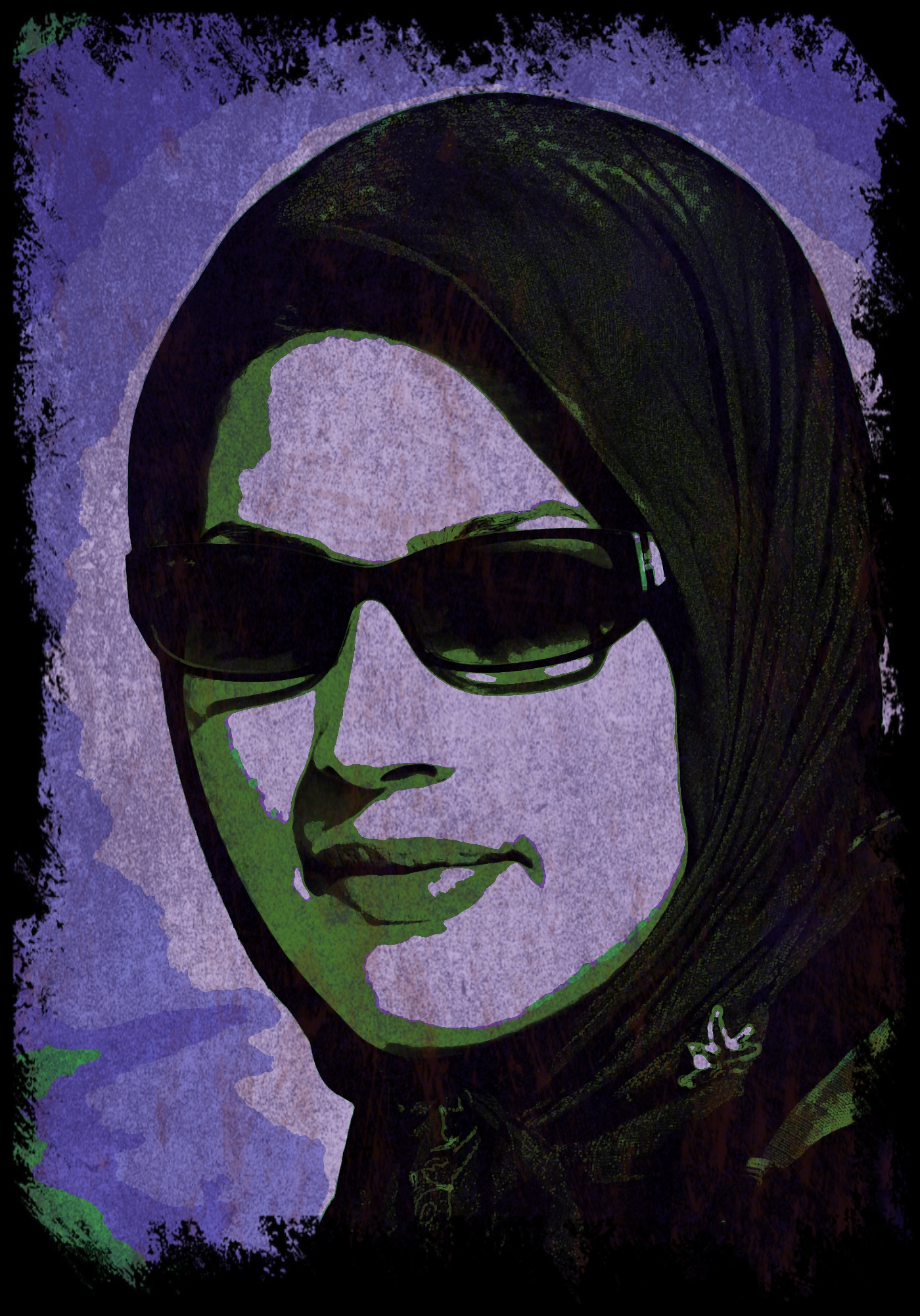
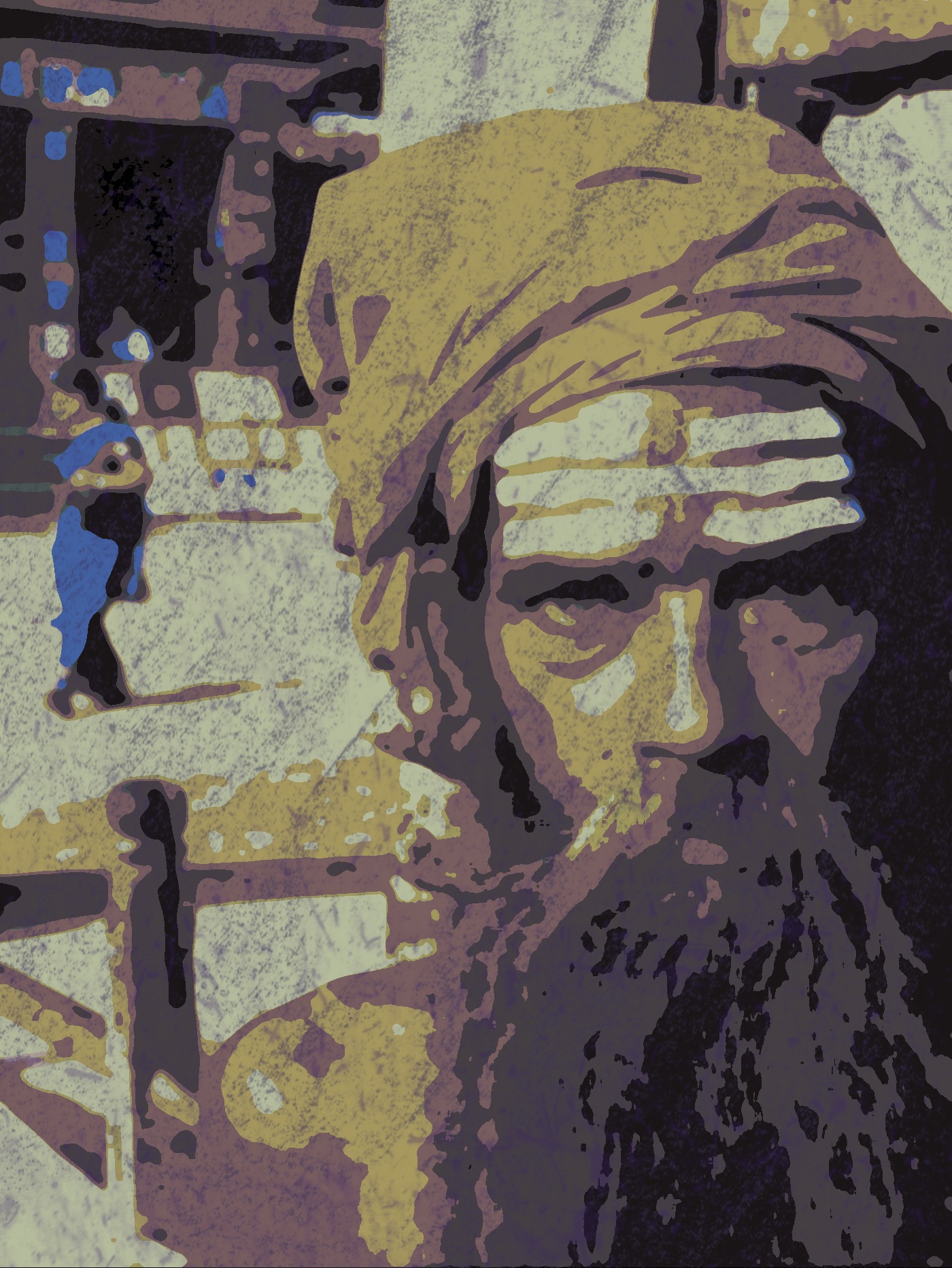
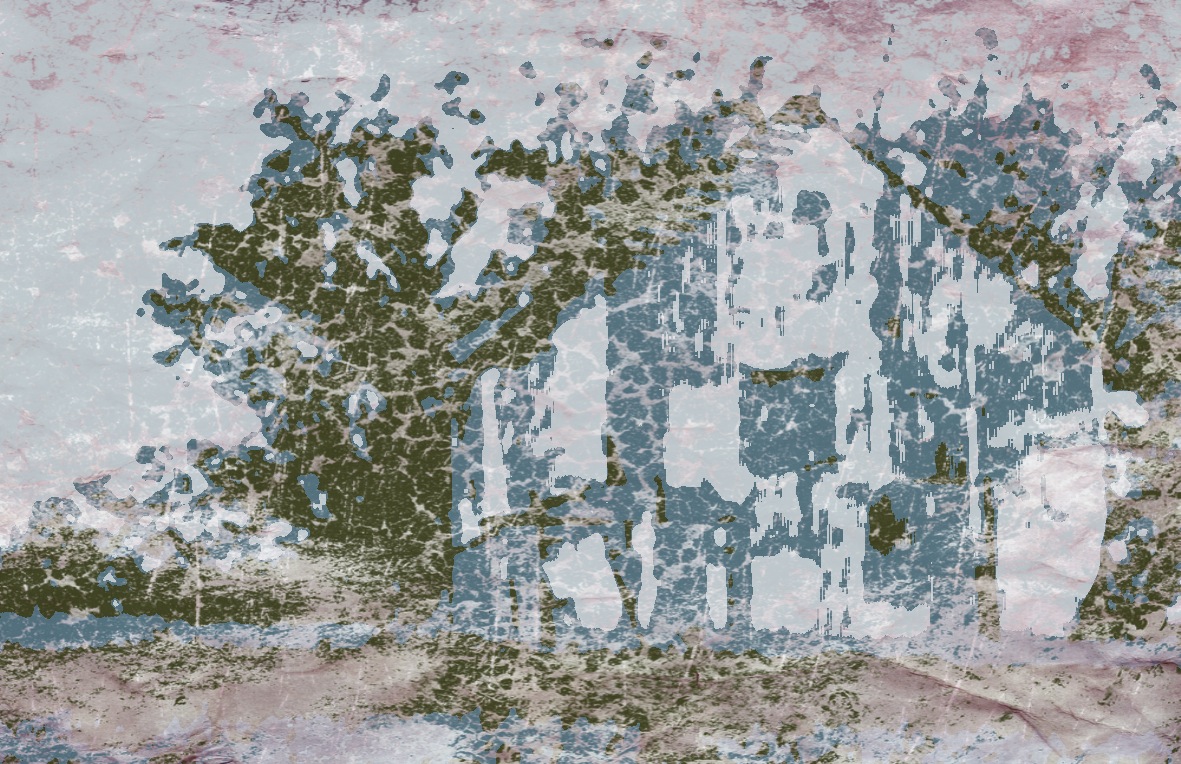
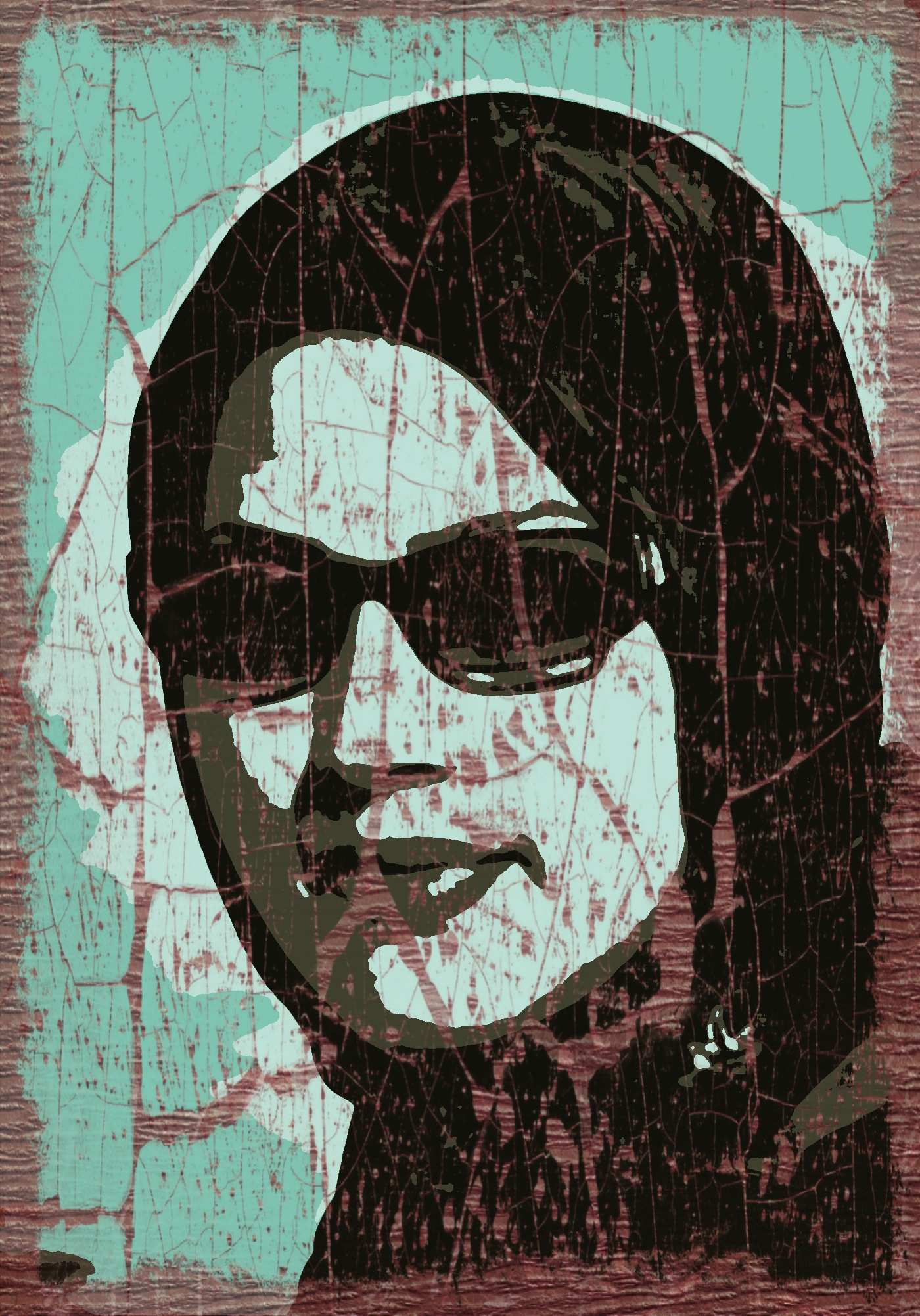
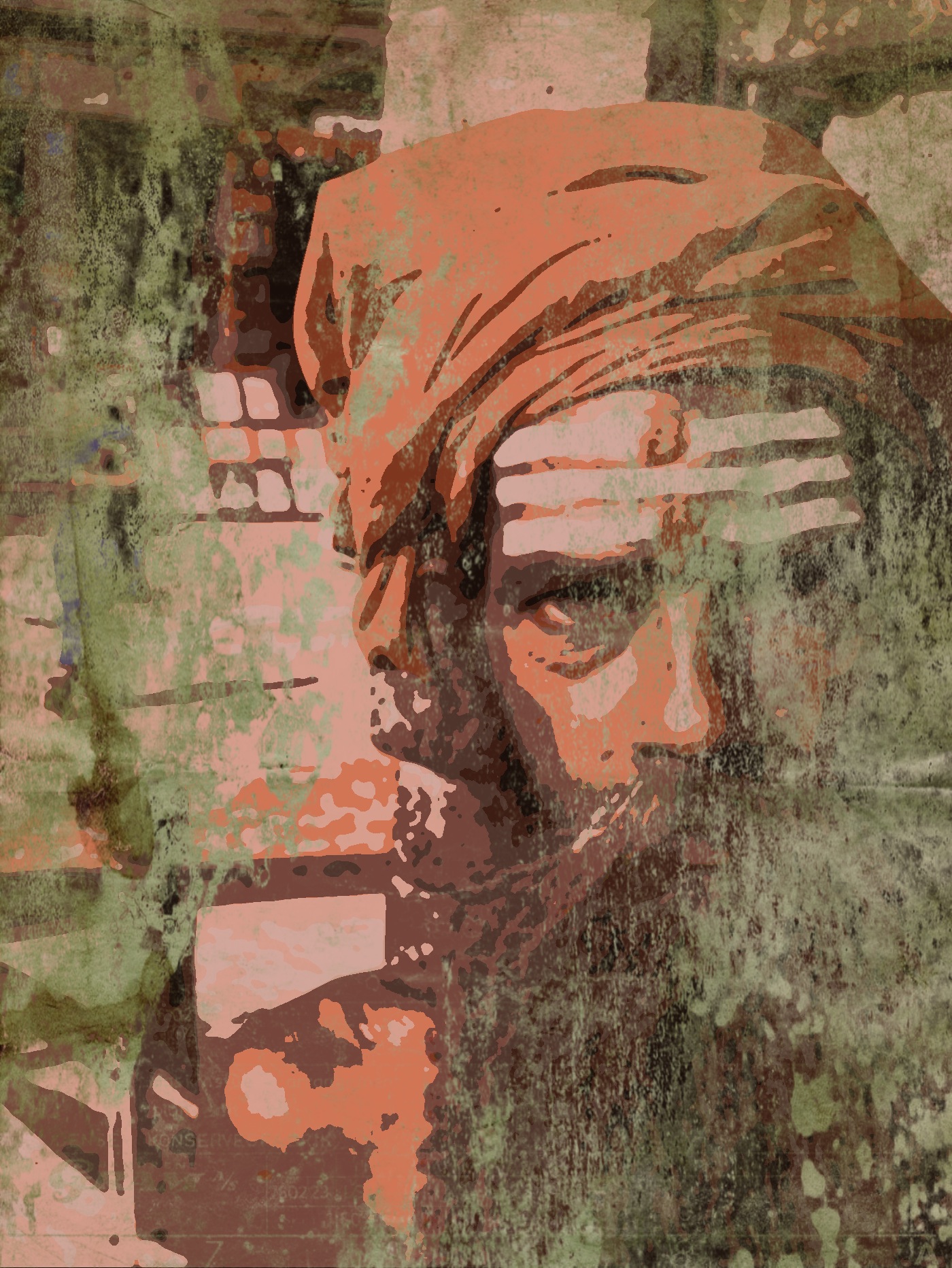
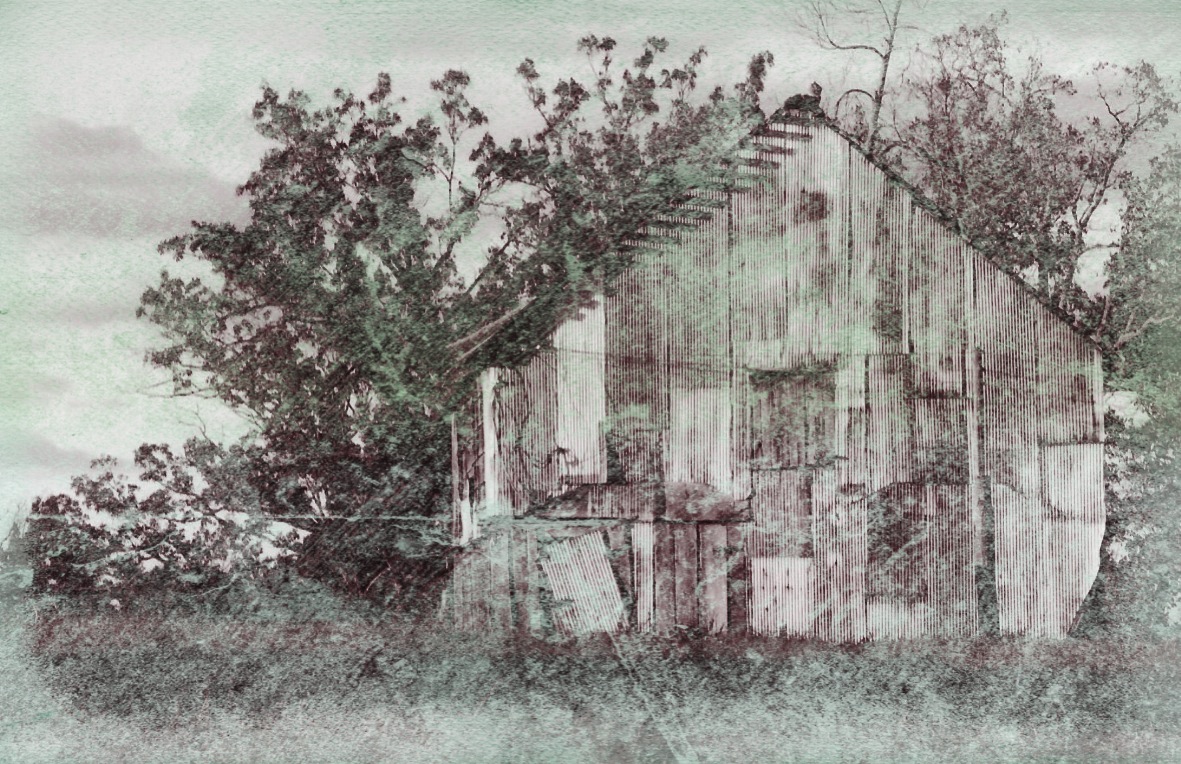
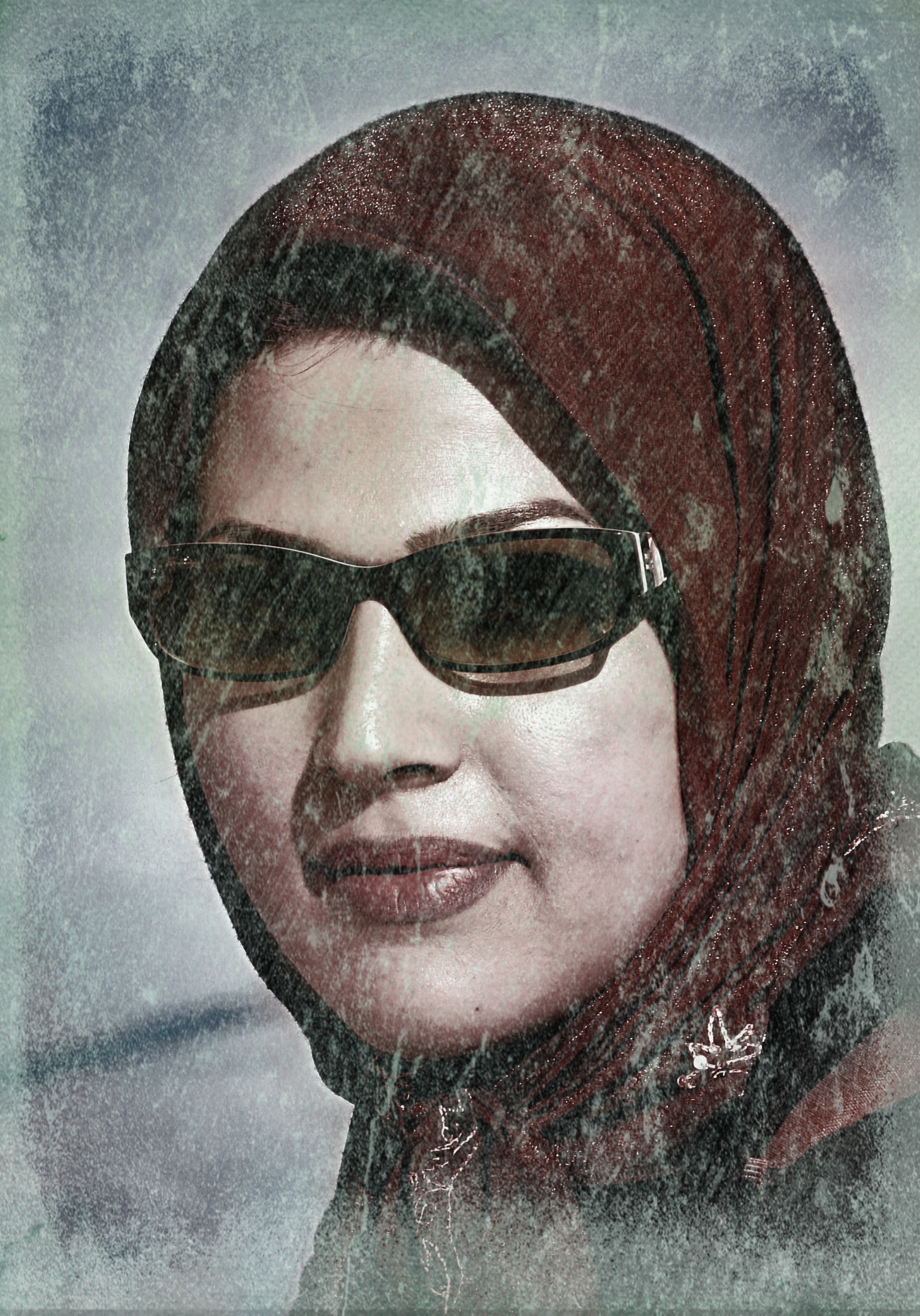
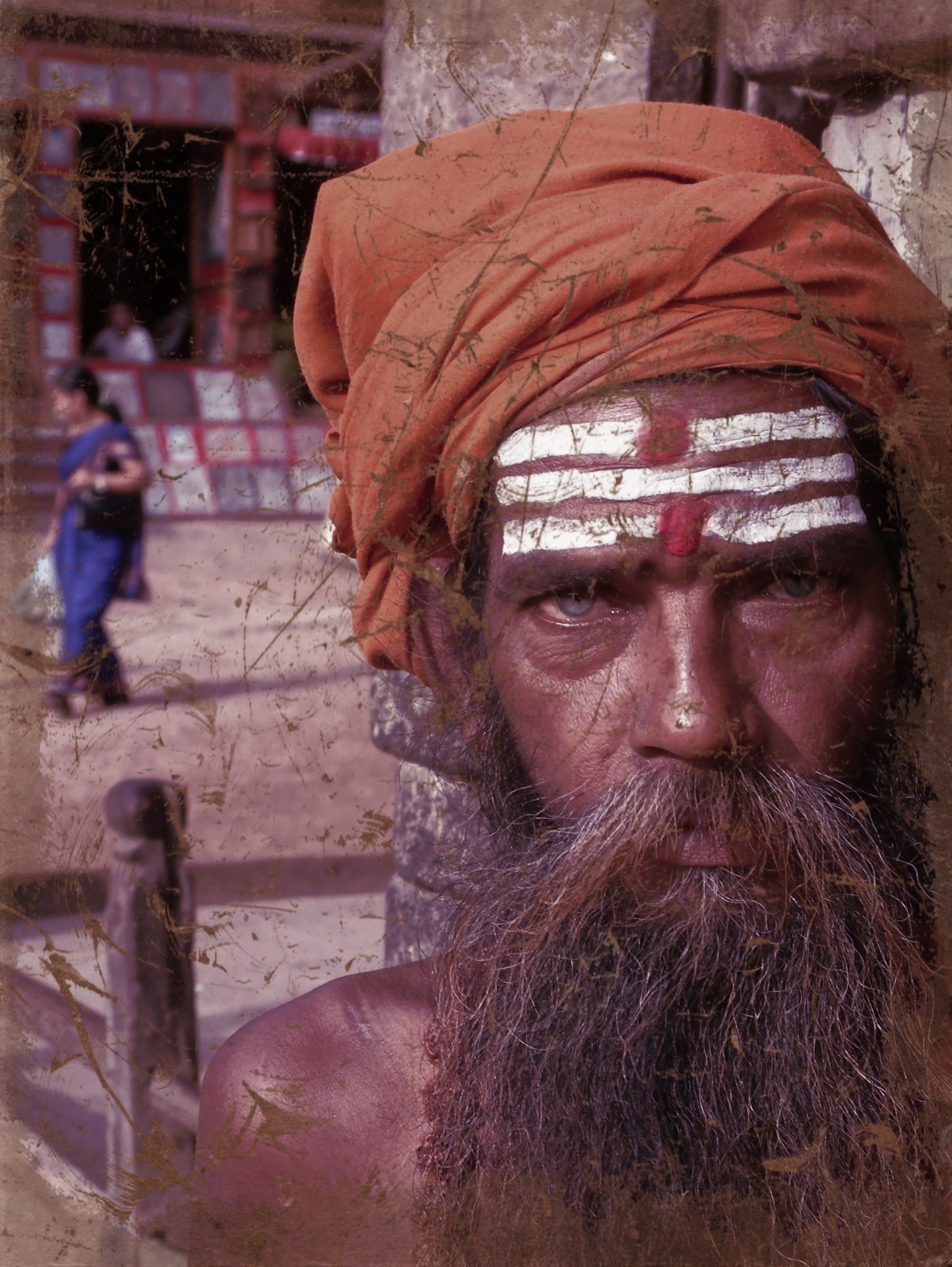
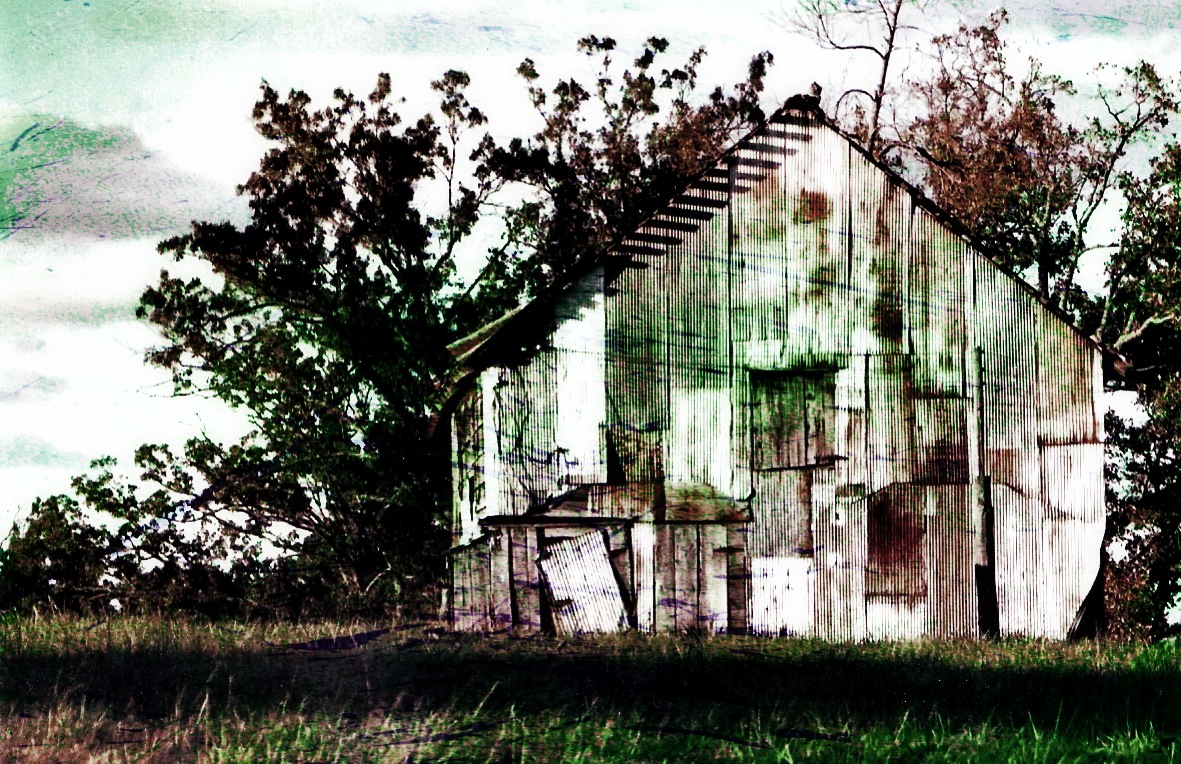
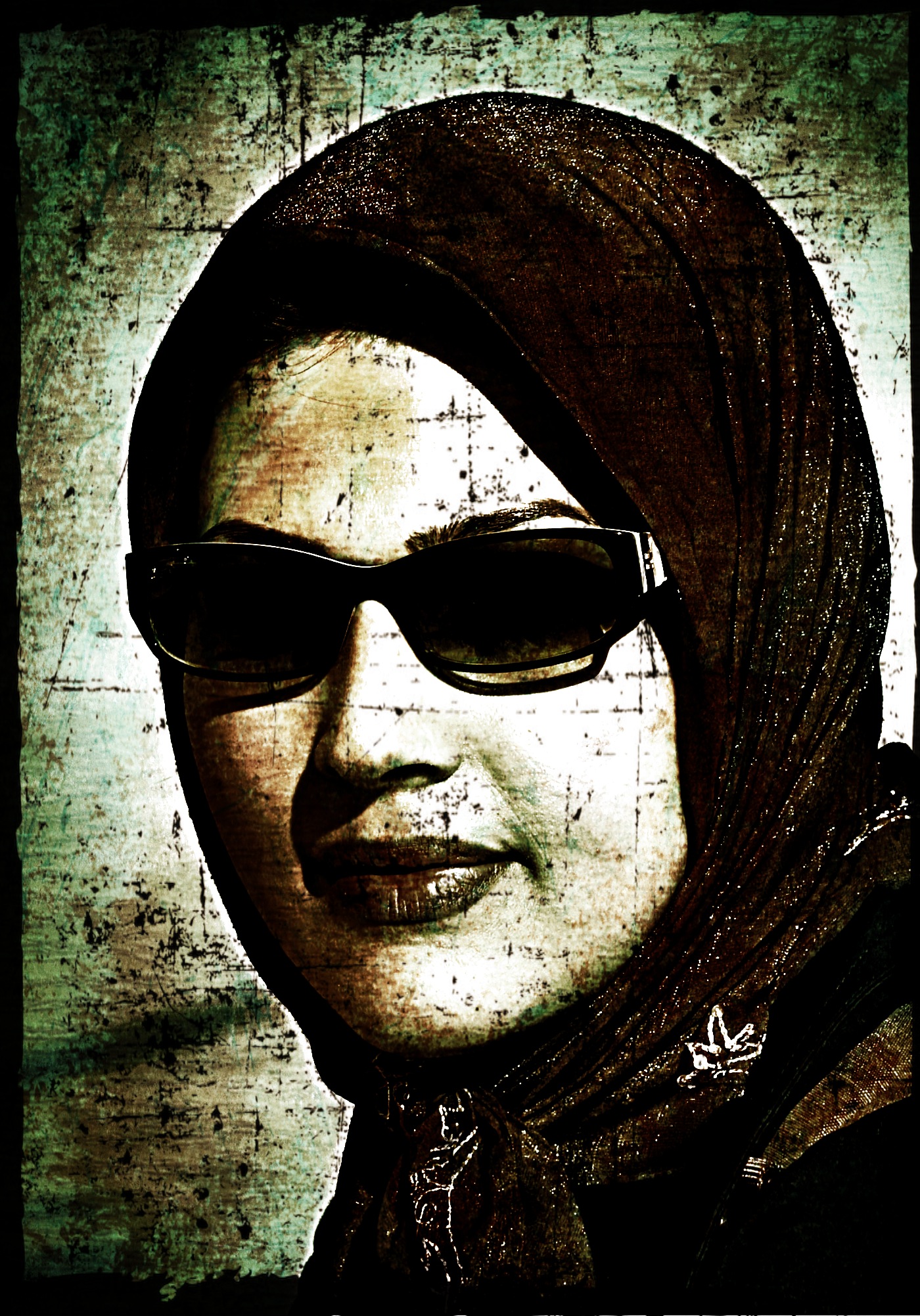
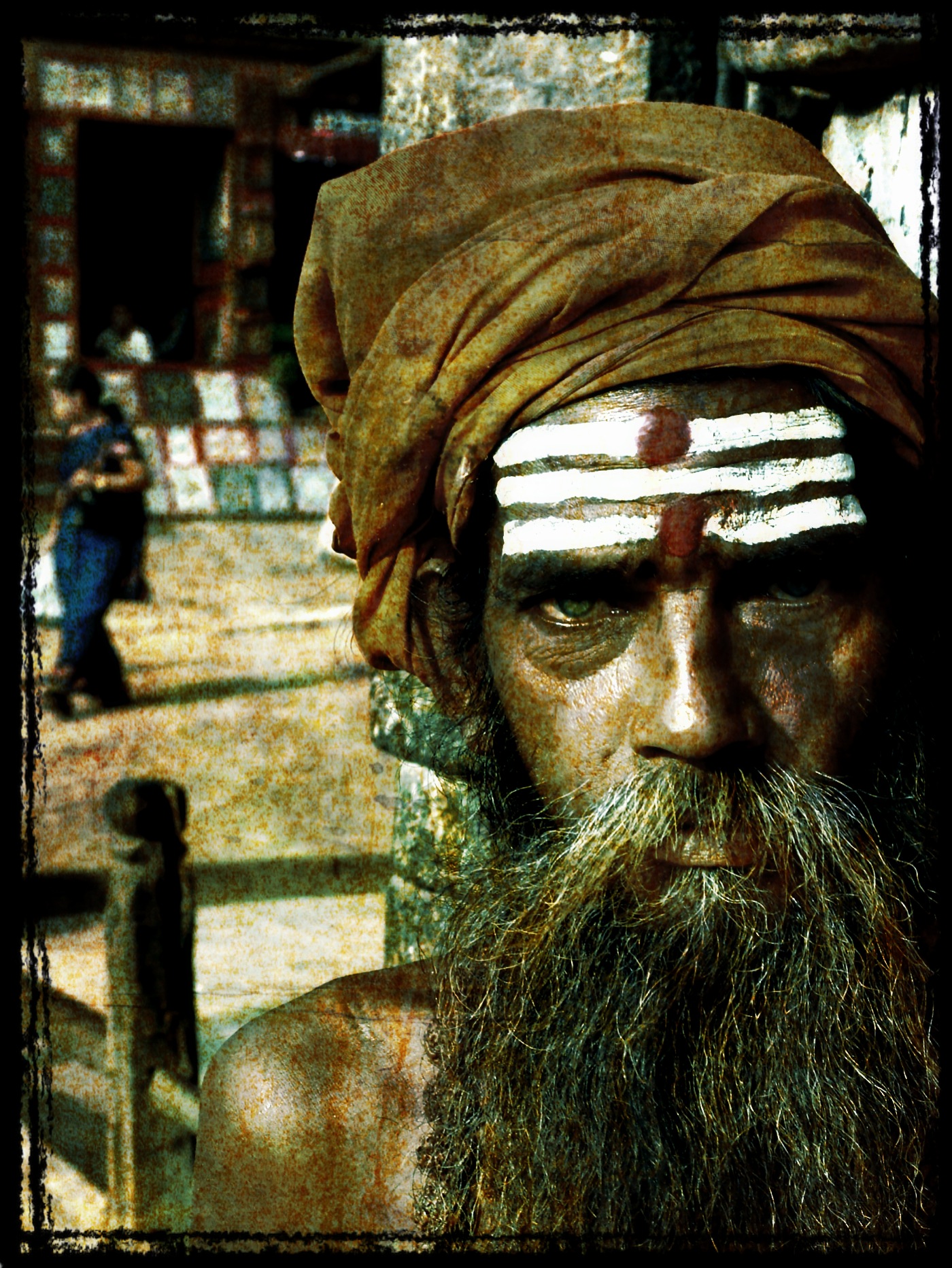
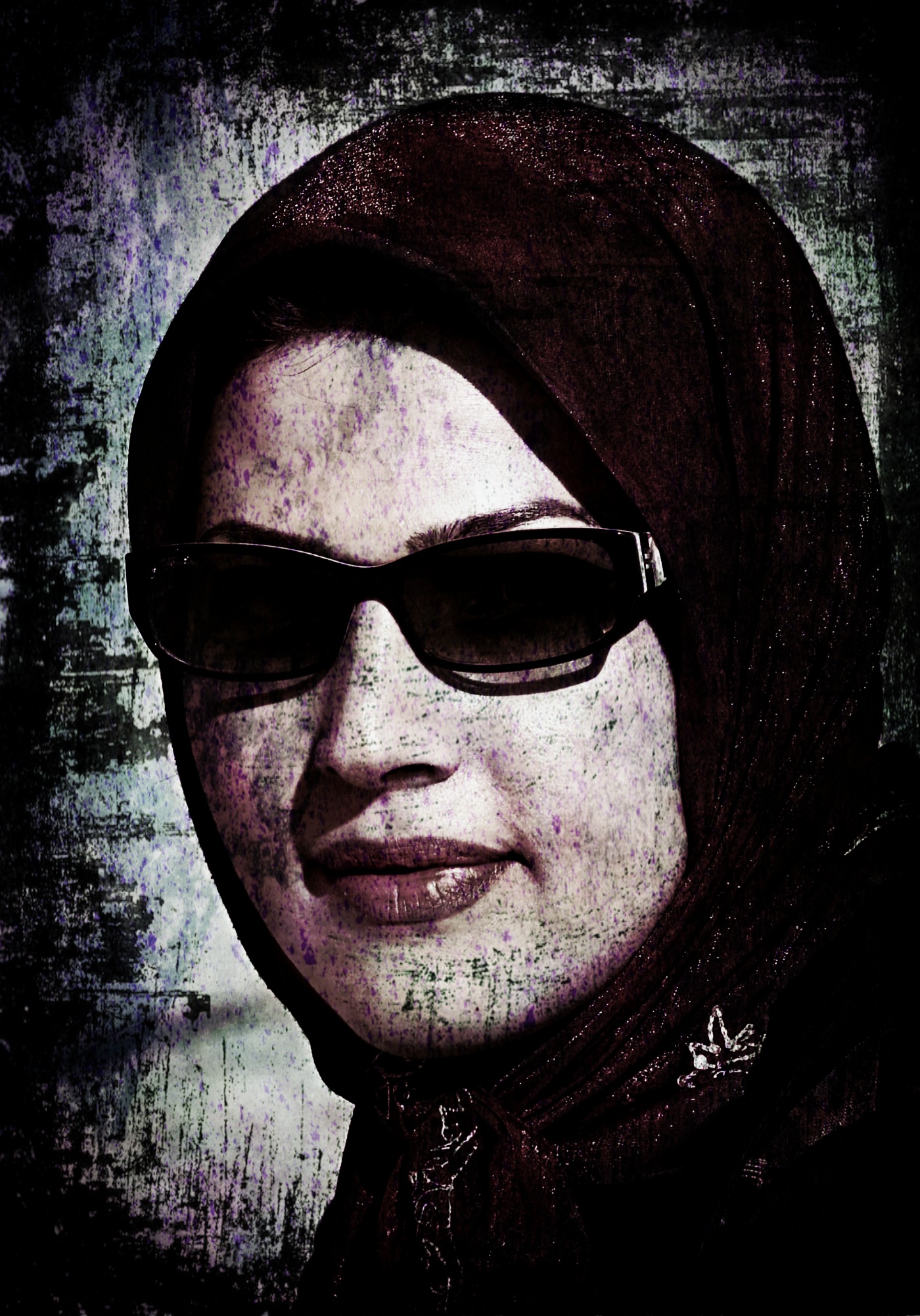
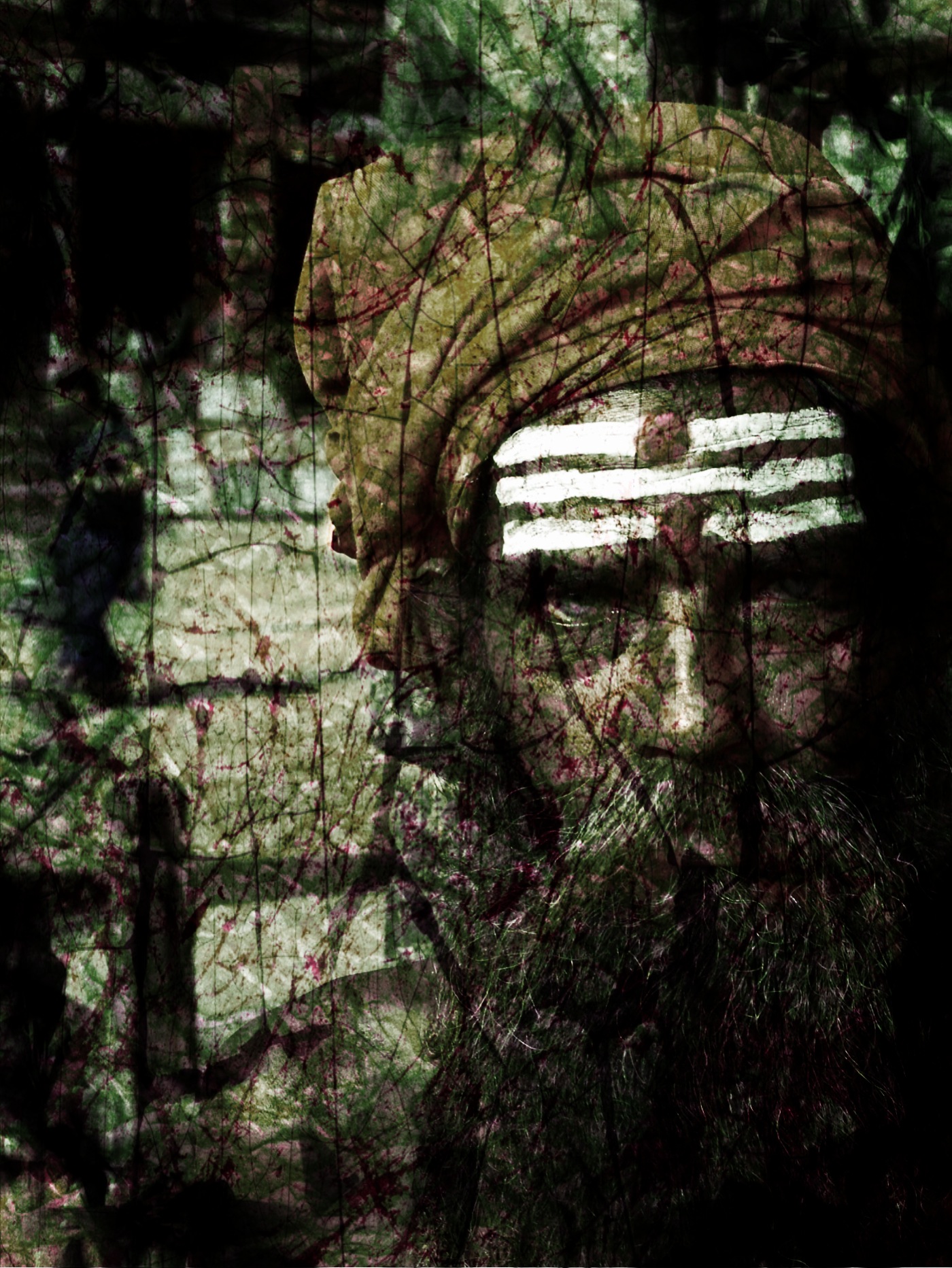

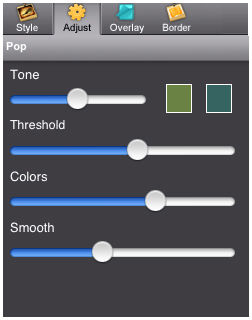
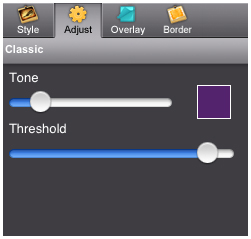
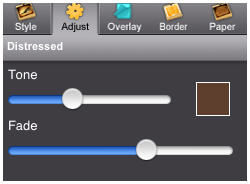
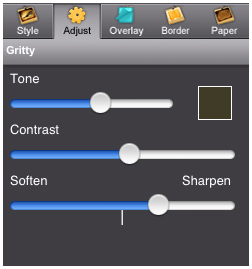
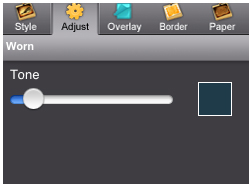
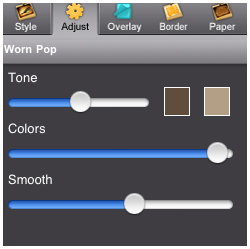
CustomizeThere are three tabs which you can use to customize your picture. The adjust tab changes depending on which preset style is selected. Adjust TabPop Version
Tone SliderMoving this slider right increases the strength of the tone globally. Most of the effects use one color box but some use two. To change the color (tone) of the image, tap on the color box to get to the color picker. Threshold SliderThis slider darkens the shadows in the image. Colors SliderThis slider controls the colors used in the image and how strong the colors become. Smooth SliderControls how hard the edges are on the colors.
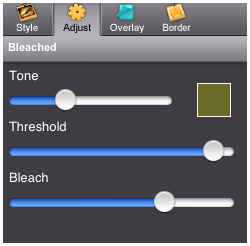
Bleached Version
|